Group Policy Object (GPO) template
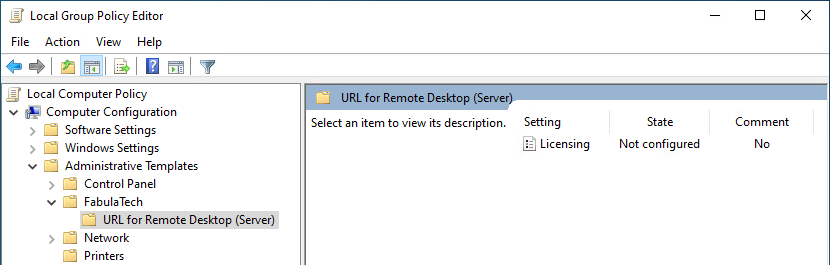
URL for Remote Desktop Server includes *.admx and *.adml administrative template files. These template files allow to configure the product via Local GPO and/or Domain-Based GPO. Please refer to Microsoft MSDN article on managing ADMX files.
The archive file containing administrative template can be found in the installation directory:
%ProgramFiles%\FabulaTech\URL for Remote Desktop (Server)\policies.zip
Additionally, the administrative template files are deployed to a local GPO during product installation and can be found here:
%WINDIR%\PolicyDefinitions\Fabulatech.admx
%WINDIR%\PolicyDefinitions\fturlrdpsrv.admx
%WINDIR%\PolicyDefinitions\en-US\Fabulatech.adml
%WINDIR%\PolicyDefinitions\en-US\fturlrdpsrv.adml
It's recommended to use the GPO template files provided with the latest product version of URL for Remote Desktop Server.
Some GPO policies can be set in different locations, depending on their target (Computer Configuration, User Configuration), or their level of applicability (FabulaTech, Product). If a policy is configured in multiple locations, the following priority order applies (from highest to lowest):
- Computer Configuration -> Administrative Templates -> FabulaTech
- User Configuration -> Administrative Templates -> FabulaTech
- Computer Configuration -> Administrative Templates -> FabulaTech -> URL for Remote Desktop (Server)
- User Configuration -> Administrative Templates -> FabulaTech -> URL for Remote Desktop (Server)
- Product settings (GUI, registry, etc.)
Policies defined at a higher level override those set at lower levels.
The GPO template can be used to configure the following settings:
| Setting | Target | Level | Description |
|---|---|---|---|
| Licensing | Computer | FabulaTech, Product |
This policy setting configures the licensing method used by the product. The following licensing modes are available:
When License Key is selected, specify the appropriate license key in the corresponding field. When License Server is selected, specify the license server address in the following format: server[:port] where server is the host name or IP address of the license server. The port is optional. If omitted, the default license server port is 33033. If this policy setting is enabled, the licensing mode and related settings defined by this policy override any configuration made through the product's settings interface. If this policy setting is disabled or not configured, the product uses the licensing configuration specified through the settings interface. Note: This policy setting can be configured at both the FabulaTech level and the product level. If this policy setting is applied at the FabulaTech level, it overrides the same policy setting applied at the product level for all installed FabulaTech products. |
| Log file rotation | Computer | Product |
This policy setting controls advanced log file rotation behavior. The product may create multiple logs for each user, depending on factors such as Session ID, Process ID (PID), and FabulaTech product module. Each log is stored on disk as a set of log file parts, which are created as the log is rotated. When the active log file part reaches the configured size limit, it is rotated: the current file part is renamed, and a new empty file part is created for the same log. If any of the configured limits are exceeded, the oldest log file parts are automatically removed according to the configured rules.
If this policy is disabled or not configured, log file rotation behavior is controlled by the application’s internal log rotation settings. |
| Log level | Computer | Product |
If this policy is disabled or not configured, the log level is controlled by the application’s internal logging settings. |
| Open custom protocols on the Workstation side | Computer, User | Product |
This policy setting specifies a list of custom protocol URLs (typically associated with Windows applications) that must always be opened on the local Workstation using their associated applications. Example: msteams zoommtg zoomus If this policy setting is used for the computer, it overrides the policy setting for all users of this computer. |
| Open files on the Workstation side (by extension) | Computer, User | Product |
This policy setting specifies the list of file extensions that, when launched, will always be opened on the local (Workstation) side. Each file extension must be entered on a new line. Example: DOC DOCX XLS XLSX PDF If this policy setting is used for the computer, it overrides the policy setting for all users of this computer. |
| Open HTTP and HTTPS URLs on the Workstation side | Computer, User | Product |
This policy controls URL redirection based on URL masks. You can choose to redirect all URLs, only those matching specified patterns, or exclude certain patterns from redirection.
Examples: www.example.* – Matches any URL containing www.example. Examples: www.example.com, www.example.domain.net *.domain.com – Matches any subdomain of domain.com Examples: www.domain.com, api.domain.com Does not match: domain.com site.internal/db/ – Matches URLs under the /db/ path. Example: www.site.internal/db/page.html Does not match: www.site.internal/page.html https://www.company.com – Matches only the HTTPS version of the URL. Example: https://www.company.com Does not match: http://www.company.com |
| Turn off "Check for updates" | Computer | FabulaTech, Product |
This policy setting determines whether the application is allowed to check for updates and notify the logged-on user.
Enabled:
Disabled:
Not Configured: Note: If this policy setting is applied at the FabulaTech level, it overrides the same policy setting applied at the product level for all installed FabulaTech products. |